You are here: Home > Product > How Zarca Online Surveys Work > Distribution Manager: Manage Survey Participation > Distribution Report: Tracking Survey Invitations and Bounce-Backs

Distribution Manager: Manage Survey Participation

Distribution Report: Tracking Survey Invitations and Bounce-Backs

Survey Options: Survey Distribution Report

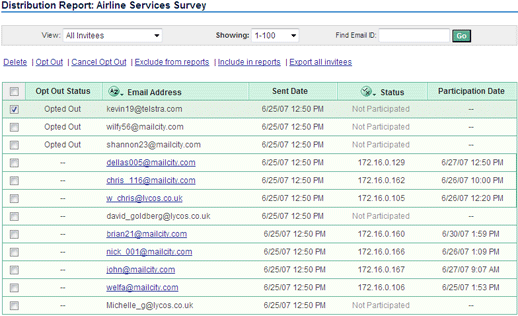
This feature allows the Survey Administrator to view the list of email addresses invited to participate in a survey and the status of their survey responses. Tracking Survey Invites and Bounce-Backs allows Administrators to manage their survey distribution initiative quickly and easily.

Optionally, the Survey Administrator can:

  • display all invitees
  • display only those have participated
  • display only those who have not participated
  • export the entire Distribution Report into an Excel file

It helps to review the list of invitees to a survey and with the “Private Survey with Unique Key”, the Survey Administrator can view the date and time the respondent was invited to the survey as well as response rates for surveys.

If the survey is not anonymous, the Survey Administrator can also view the participation status, date and time of participation, and click on the email address to view the responses provided by the respondent.

Track the updated status of Survey Invites and Participation

Distribution Report: Tracking Survey Invitations and Bounce-Backs

Functionality and Features

Alphabet: Limit the survey distribution report to those email addresses which begin with a selected letter.

Page Number: Scroll through the distribution list by page number, at 100 responses per page.

Languages: If you have created a multilingual survey, you can sort the responses per language by selecting the language of your choice from the Languages drop-down menu.

View (drop-down option): You can customize your distribution report by choosing to view the details in the following categories: All Invitees, All Responses, Included Responses, Excluded Responses, All Pre-Pop Invitees, Scheduled Invites, Scheduled Reminders and Test Invites.

Find Email ID: You can go directly to a response by entering all or a portion of the known email address the invitation was sent to. Hyperlink Capability: The Email Address in the distribution report is a hyperlink. By clicking on this, you will automatically be directed to the responses for this participant.

  • Sort By: Email Address to sort alphabetically based upon the email address.
  • Use Sent Date to chronologically sort the survey by the date it was sent.
  • Use Participation Date to chronologically sort the survey based upon the date it was completed.
  • Use Status to sort the survey based upon participation status. Note: If the survey has been completed by the
  • participant, you will see an IP address in this field (unless the survey has been specified as anonymous).
© Copyright 2000-2008 Zarca Interactive, Inc. All rights reserved. Various trademarks held by their respective owners.